How Cloud Accounting Software Works (Plain English Explanation)
Cloud accounting software explained in plain English. How data flows, where it lives, what's automated, and how secure it really is — without the jargon.
Quick Answer
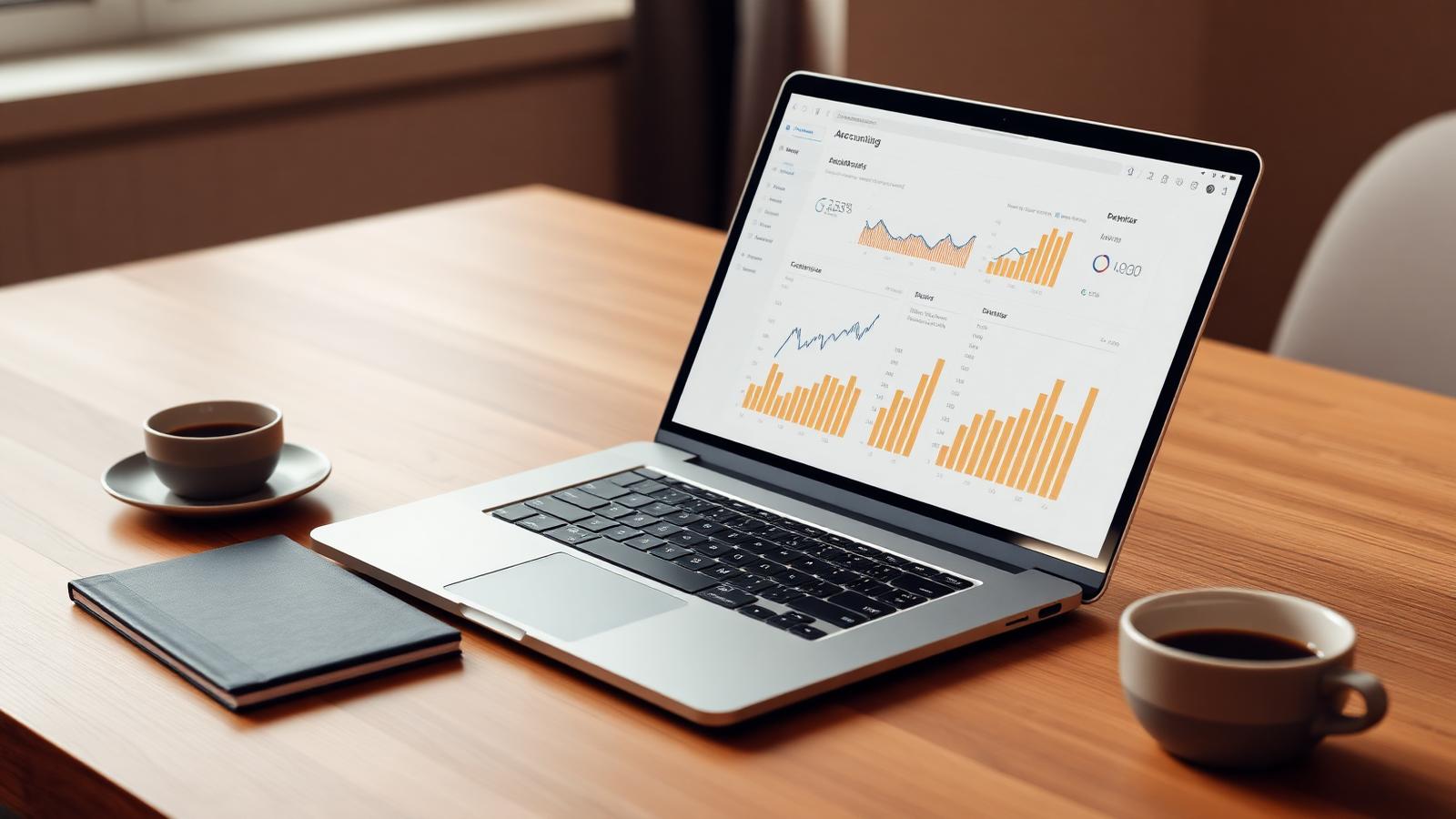
Cloud accounting software stores your financial data on the provider's remote servers and lets you access it from any device through a browser or mobile app. Bank feeds import transactions automatically, multiple users can collaborate in real time, and backups happen continuously. Examples include QuickBooks Online, Xero, Wave, and FreshBooks.
Cloud accounting software stores your financial data on remote servers and delivers it through a web browser or app. The shift from desktop to cloud has changed almost everything about how small businesses handle bookkeeping.
Table of contents
What Is Cloud Accounting?
Cloud accounting refers to software hosted on remote servers and accessed via the internet. Users log in through a browser or mobile app; data syncs automatically and is available from any device.
How Data Flows
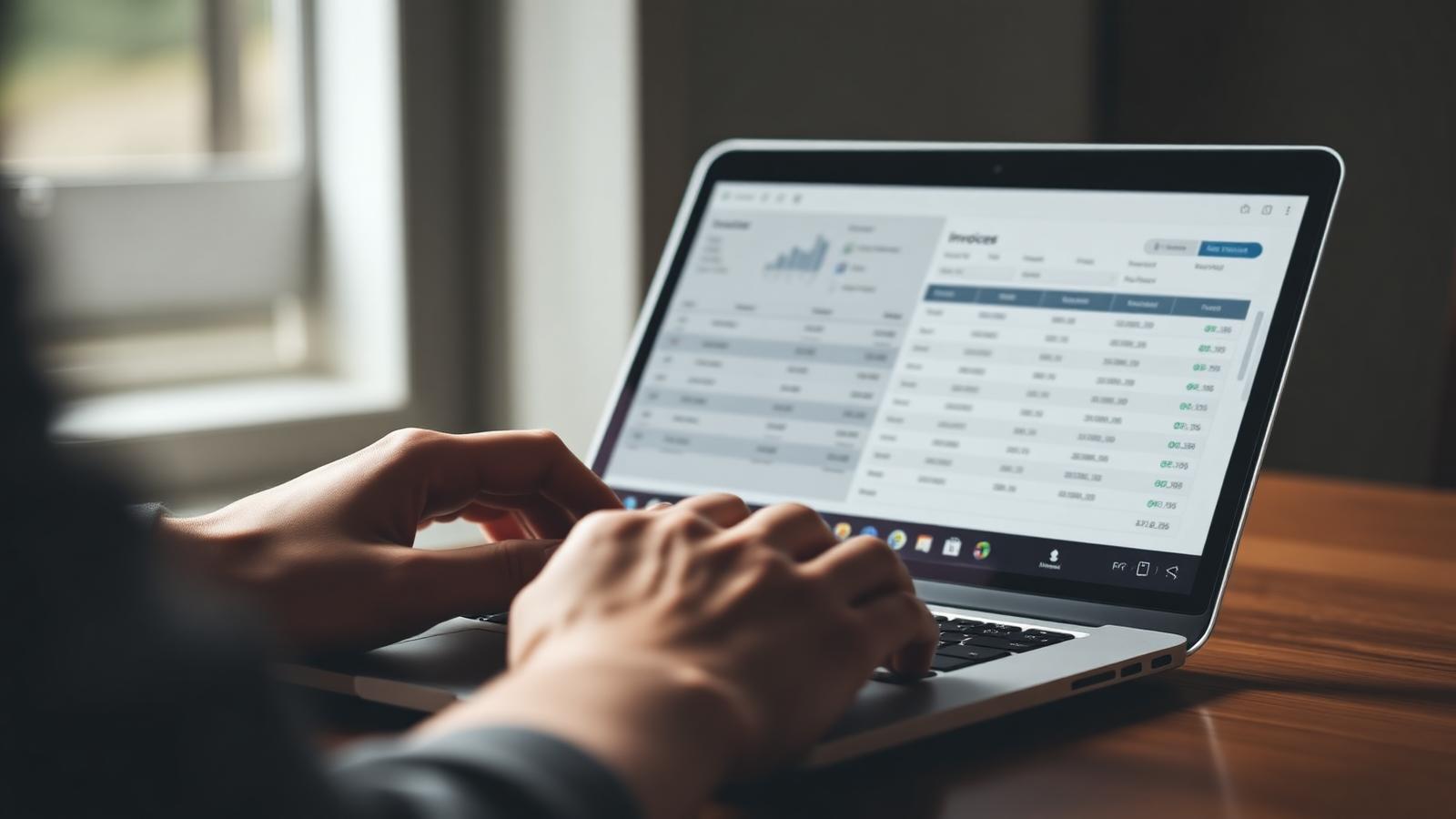
Bank and credit card feeds import transactions automatically. Users (or rules) categorize them. Invoices, payroll, and payment systems integrate via APIs. All data updates in real time and is visible to everyone with access.
Operational Benefits
- Multi-user, multi-device access
- Automatic updates and backups
- Real-time collaboration with accountants
- Integrations with banks, payment processors, and other apps
- Subscription pricing (no upfront license)
Security and Compliance
Reputable cloud providers use encryption in transit and at rest, redundant data centers, and regular security audits. Users still need strong passwords, two-factor authentication, and careful access management.
Best Ways to Get Started
- →
Enable two-factor authentication
Single biggest security measure. Required by most reputable providers.
- →
Use role-based access
Give team members only the permissions they need. Don't share login credentials.
- →
Connect bank feeds immediately
Eliminates 60–90% of manual data entry.
- →
Use the mobile app for receipts
Real-time capture, attached to transactions automatically.
- →
Give your accountant view-only access
Year-end work goes from days to hours.
- →
Review access permissions quarterly
Remove former employees, contractors, and old auditors promptly.
Step-by-Step Plan
- 01
Pick a cloud accounting platform
QuickBooks Online, Xero, Wave, FreshBooks all fit most small businesses.
- 02
Set up your account and chart of accounts
Use the default template; customize sparingly.
- 03
Enable two-factor authentication
On your account and every user account.
- 04
Connect bank and credit card feeds
Authorize accounts. Transactions sync daily.
- 05
Install the mobile app
Use it for receipt capture and on-the-go invoicing.
- 06
Invite your accountant
View-only or advisor access lets them work without disrupting yours.
Cloud vs Desktop Accounting Software
| Aspect | Cloud | Desktop |
|---|---|---|
| Access | Any device, anywhere | One computer |
| Updates | Automatic | Manual installations |
| Backups | Automatic | User-managed |
| Multi-user | Built-in | Limited or extra license |
| Pricing | Subscription | One-time + upgrades |
| Bank feeds | Native | Often manual import |
| Internet required | Yes | No |
Mistakes to Avoid
- ✗Using the same password across accounts.
- ✗Sharing one login among multiple users.
- ✗Leaving former employees with access.
- ✗Not enabling 2FA.
- ✗Assuming the cloud replaces your responsibility for review and reconciliation.
Pro Tips Advanced
- ★Bookmark the mobile app's receipt capture screen for one-tap access.
- ★Set up automated month-end report emails to yourself for an archived record.
- ★Use a password manager — generates and stores strong unique passwords.
- ★Test your data export annually. Confirm you can move data if needed.
Frequently Asked Questions
Sources
- • Publication 334: Tax Guide for Small Business — Internal Revenue Service
- • Generally Accepted Accounting Principles (GAAP) — Financial Accounting Standards Board
- • Small Business Financial Management — U.S. Small Business Administration
All articles are reviewed for factual accuracy by a credentialed accounting professional before publication.
Priya is an IRS Enrolled Agent and bookkeeping specialist. She has prepared thousands of small business returns and consults on cloud accounting workflows for service-based businesses.